> ## Documentation Index
> Fetch the complete documentation index at: https://help.getdqd.com/llms.txt
> Use this file to discover all available pages before exploring further.
# Adding Events
> Events are one-off or recurring experiences for which bookings can be made. This section covers booking options and event settings.
## Creating Events
To get started, go to [/manage-events](https://order.getdqd.com/au/cms/manage-events).
To create a new event, tap the **"+"** symbol (see annotation 1) at the top right of the events list panel.
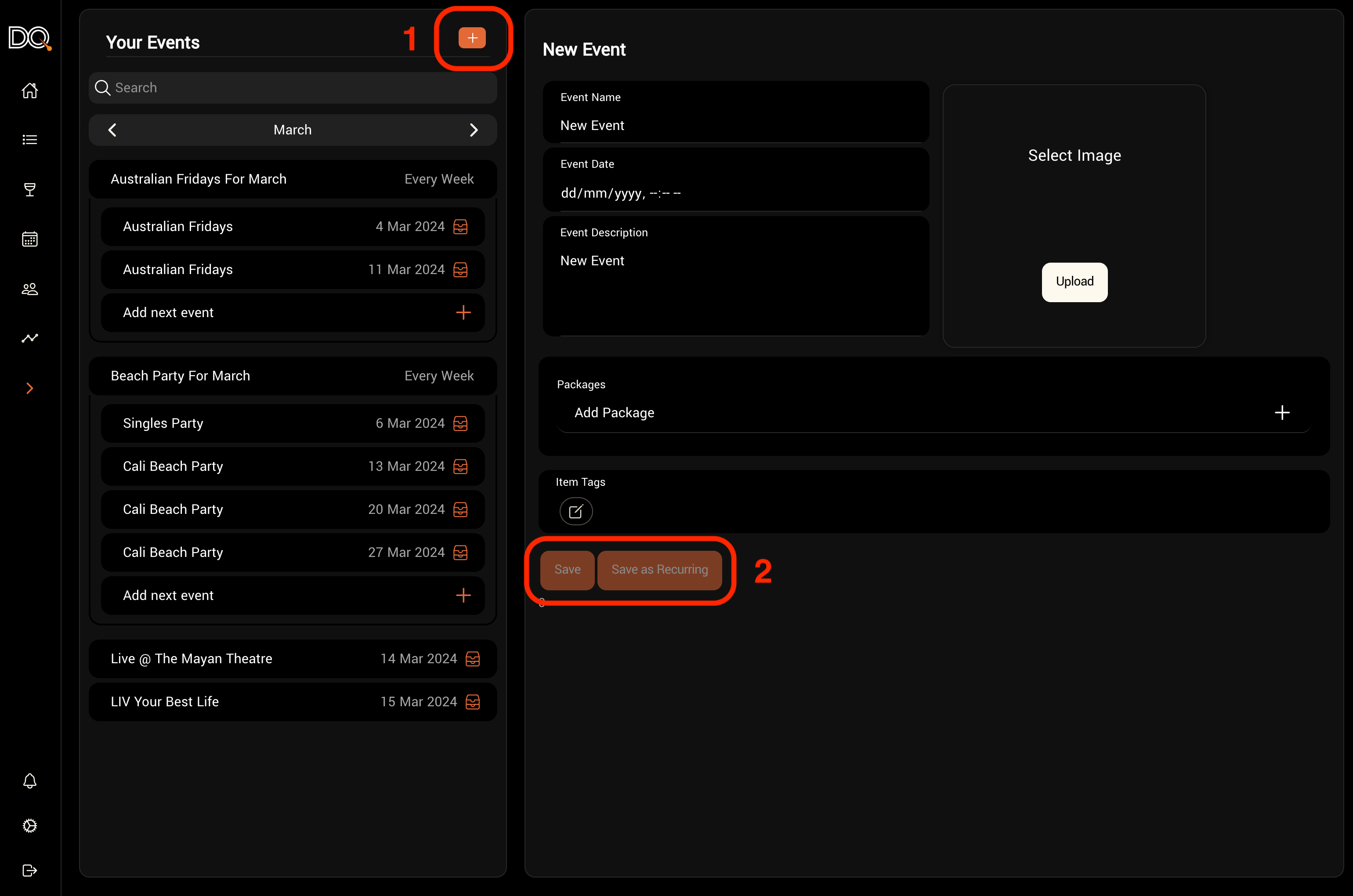 You'll need to provide a date, a description, and select the available booking options.
When creating an event, you can choose between a **one-off** or a **recurring** event (see annotation 2).
You may also add an image and any relevant tags.
Adding tags helps you better identify and segment your guests.
### Event Properties
| Property | Description | Required |
| ----------- | -------------------------------------------------------- | -------- |
| Name | Name of the event | Yes |
| Date | Date and time of the event | Yes |
| Description | A customer-facing description | No |
| Image | Used for customer-facing pages and digital wallet passes | No |
| Packages | Booking options available for this event | No |
| Tags | Metadata used to track and segment guests who attend | No |
***
After saving the event, you’ll have options to:
* Share a link to the event
* Duplicate the event
* Archive the event
If you’ve created a **recurring event**, you’ll see an option below the most recent occurrence to **add the next event**.
Simply click the **"+"** to create the next event in the series. The new event will inherit the properties of the previous one, which you can edit if needed.
You'll need to provide a date, a description, and select the available booking options.
When creating an event, you can choose between a **one-off** or a **recurring** event (see annotation 2).
You may also add an image and any relevant tags.
Adding tags helps you better identify and segment your guests.
### Event Properties
| Property | Description | Required |
| ----------- | -------------------------------------------------------- | -------- |
| Name | Name of the event | Yes |
| Date | Date and time of the event | Yes |
| Description | A customer-facing description | No |
| Image | Used for customer-facing pages and digital wallet passes | No |
| Packages | Booking options available for this event | No |
| Tags | Metadata used to track and segment guests who attend | No |
***
After saving the event, you’ll have options to:
* Share a link to the event
* Duplicate the event
* Archive the event
If you’ve created a **recurring event**, you’ll see an option below the most recent occurrence to **add the next event**.
Simply click the **"+"** to create the next event in the series. The new event will inherit the properties of the previous one, which you can edit if needed.